How to Compare AI Models Side-by-Side (2026 Guide)
The era of relying on just one AI model is over. Whether you are a marketing manager drafting a campaign, a researcher analyzing PDFs, or a consultant synthesizing meeting notes, locking yourself into a single vendor's ecosystem is a massive productivity risk.
Every flagship model excels at different tasks. One might have unparalleled creative reasoning, while another strictly adheres to formatting rules. The secret to unlocking true "knowledge work" potential in 2026 is triangulation: asking multiple AIs the same question and combining their best insights.
The Flaw of Browser-Based AI Testing
Most professionals still attempt to compare models using web browsers. This workflow usually looks like this:
- Open Tab 1 for Model A. Paste your prompt. Wait.
- Open Tab 2 for Model B. Paste your prompt. Wait.
- Flick back and forth between tabs, trying to mentally memorize which paragraph sounds better.
- Copy fragments from both tabs into a Word document to splice them together.
This process is tedious, disrupts your flow state, and wastes the very time the AI is supposed to save you. It's essentially the modern equivalent of having a messy desk covered in sticky notes.
How to Master the "Parallel Workflow"
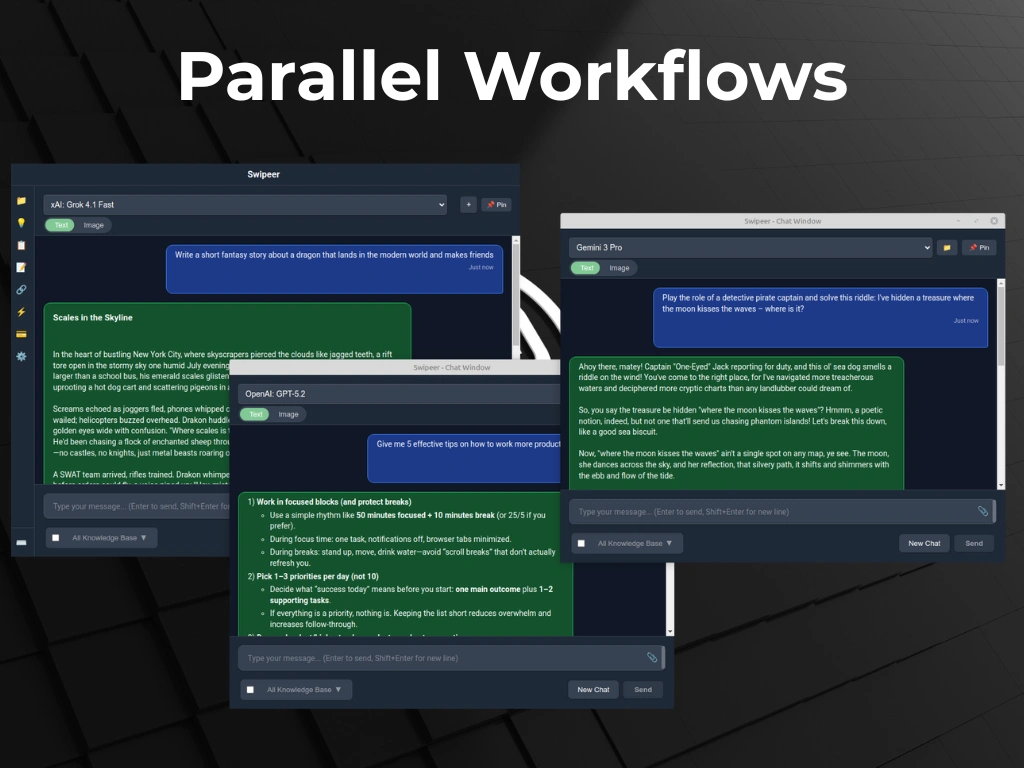
The modern solution is transitioning away from browser tabs and moving to a dedicated AI workspace that supports Parallel Workflows (side-by-side generation).
Step 1: Use a Unified Desktop Interface
Rather than subscribing to three different premium subscriptions and navigating three different web interfaces, use an application like Swipeer. It runs natively on your machine and allows you to connect to the best models interchangeably.
Step 2: Trigger Side-by-Side Mode
When faced with a complex task—like rewriting an important client proposal or analyzing a dry financial report—open your Swipeer interface and activate a split-screen view.
Assign a different top-tier model to each column.
Step 3: One Prompt, Multiple Perspectives
Type your instruction once. For example: "Analyze these Q3 sales results and write a concise, optimistic email summary tailored for the board of directors."
When you hit enter, the prompt is broadcasted to all active models simultaneously. Within seconds, you watch the text stream side-by-side.
Why Side-by-Side Comparison is a Game Changer
By seeing the outputs adjacently, the differences become starkly obvious:
- Fact-Checking: If one model hallucinates a data point, the other model's accurate interpretation immediately flags the error by contrast.
- Tone Calibration: You might prefer the professional structure of the left model, but love the creative hook written by the right model. You can seamlessly merge the two.
- Speed: You cut your waiting time in half. Instead of sequential generation, you get parallel brainstorming.
Conclusion
Don't settle for the first answer an AI generates. The best professionals treat AI models like a panel of experts. By utilizing side-by-side comparisons in a native app, you bring that entire panel into a single, organized room, dramatically elevating the quality of your work output.
Ready to compare AI models like a pro?
Stop juggling tabs. Download Swipeer today and compare the world's best AI models side-by-side directly on your Mac.