How to Automate AI Outputs to n8n, Make.com, & Webhooks
AI chat interfaces like ChatGPT and Claude are fantastic for ideation and analysis, but they suffer from a massive fatal flaw for power users: they act as "data silos." Once an AI generates the perfect client summary or parses the exact data structure you need, that precious data is trapped inside the chat window.
For automation nerds, agency owners, and operations managers, manually highlighting, copy-pasting, and switching tabs to paste data into Notion, Airtable, or HubSpot is an agonizing waste of time. The ultimate goal is a seamless pipeline.
The Webhook Solution: Bridging the Gap
The absolute most efficient way to break AI data out of its silo is by utilizing Webhooks. Think of a webhook as a digital mail chute. When an event happens in Application A (the AI finishes its response), you drop the data down the chute, and it instantly lands in Application B (your n8n or Make.com scenario).
Browser Limitations vs. Native Webhooks
Standard browser interfaces do not allow you to push data out securely. You cannot inject custom webhook buttons into Anthropic's website.
This is why the automation community has shifted heavily toward Native AI Desktop Workspaces like Swipeer. Because Swipeer runs locally on your machine—with API access to all models—it can be configured to interact directly with external endpoints.
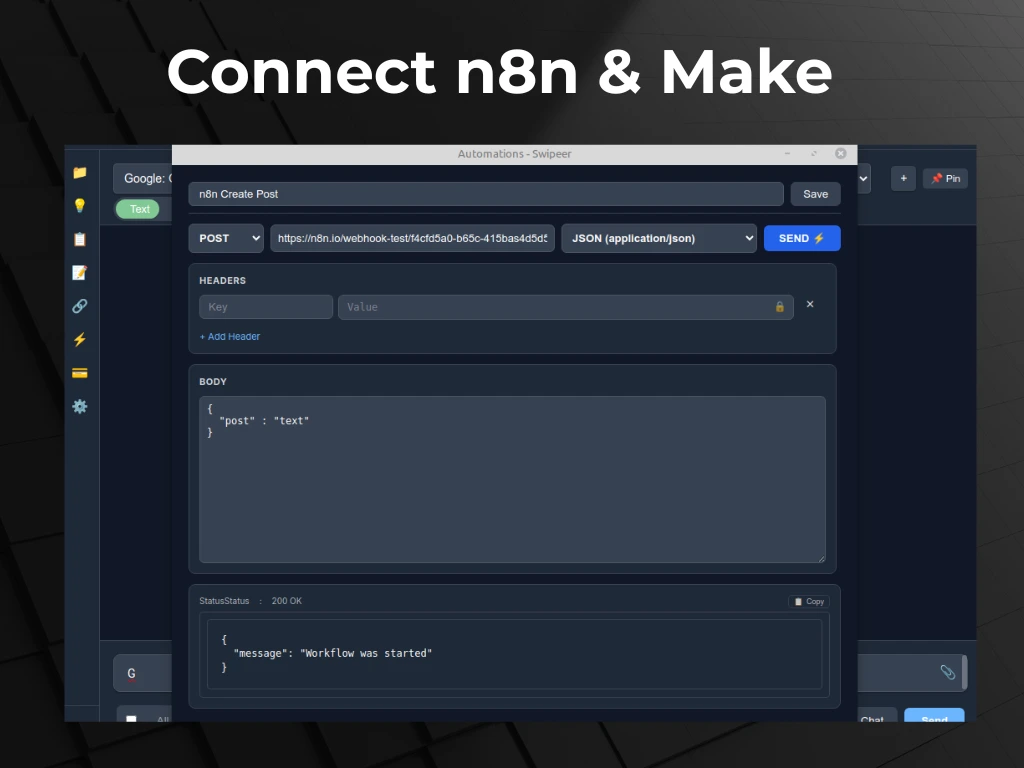
Step-by-Step: Connecting Swipeer to n8n & Make.com
Below is the universal workflow to connect any Swipeer AI response (from GPT, Claude, or local Llama models) directly to your automation builder.
1. Generate Your Webhook Catch URL
First, you need to create the receiving end of the mail chute.
- In n8n: Add a "Webhook" node to the start of a new workflow. Set the HTTP
Method to
POST. Copy the "Test URL". - In Make.com (Integromat): Add a "Custom Webhook" module. Click "Add", name it, and copy the generated address.
2. Configure the Button in Swipeer
Open your Swipeer application settings and navigate to the Automations / Integrations tab.
- Create a new action pattern (e.g., "Send to CRM").
- Paste your n8n/Make Webhook URL into the endpoint field.
- Swipeer will automatically prepare the JSON payload. By default, this payload contains the exact text generated by the AI model, along with metadata like the timestamp and model used.
3. Click to Push
Now, return to your chat interface. Ask the AI to summarize a long PDF or extract action items from a meeting transcript.
When the generation is complete, you will see your new custom "Send to CRM" button right below the response. Click it. The data fires via webhook instantly, triggering your n8n workflow to create tasks in Asana, update Airtable rows, or draft a Gmail.
Advanced Ideas: Structured JSON Extraction
If you want to take your automations to the next level, don't just send raw text. Use Swipeer to prompt the AI to output rigid JSON formatting.
"Extract the name, company, and phone number from this transcript. Output strictly as JSON under the keyscontactName,companyName, andphone. Output nothing else."
When you push this response to your Make.com Webhook, Make will automatically parse the JSON. You can then map these exact variables directly into HubSpot CRM fields without any messy text cleaning or regex parsing!
Conclusion
Stop being the human bridge between intelligent algorithms and your company's databases. By connecting a native AI workspace directly to webhooks, you eliminate copy-pasting errors, save hundreds of clicks a week, and build the ultimate "AI-to-Database" automation pipeline.
Build native automations in seconds.
Connect Claude, ChatGPT, and Local AI directly to your webhooks. Download Swipeer and start pushing data to n8n and Make.com without writing code.